# Self tests
# Performing a Speedtest
## How to perform a speedtest
1. **Ensure that you are using a device cabled into your router**. Do not use wifi to perform a speedtest (see note below)
2. **Ensure that no other devices are connected to your network** while performing a test
3. Open your web browser (for example Chrome, Firefox, Edge)
4. Go to [www.speedtest.net](http://www.speedtest.net) or speedtest.mybroadband.co.za
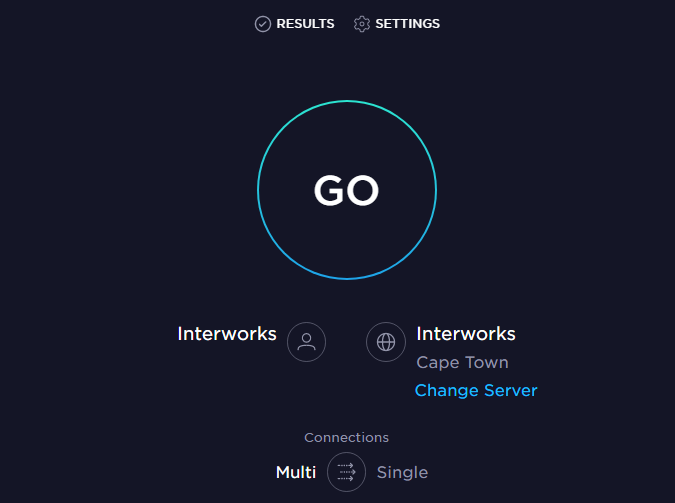
5. Click on GO or START TEST
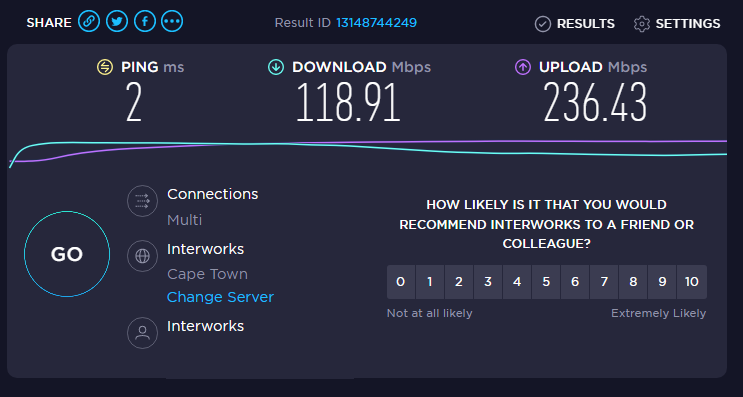
6. The test will run for a couple of seconds, before showing your results
[](https://bookstack.interworks.in/uploads/images/gallery/2022-05/gHrg0fHTD3GMpalN-speedtest1.png)
[](https://bookstack.interworks.in/uploads/images/gallery/2022-05/ZXy8xz06HMjEv0uu-speedtest2.png)
## Why perform a speedtest using a cabled device?
This will allow us to better pinpoint where an issue is, and help get a quicker resolution. It allows us to differentiate between a backhaul issue (fibre or fixed wireless) and internal wireless issues, both of which require a different approach to resolve. The result of this test is also a requirement from various fibre vendors (if applicable) before we can log a support ticket with them to investigate any possible issues on a line.
## Why is it important that no other device be connected to my router while performing the speedtest?
A speedtest shows the "leftover" capacity on your line. If any device is busy downloading in the background (i.e. a device performing automatic updates, or syncing to the cloud), it will skew the result, and make it more difficult to pinpoint the exact issue.
## How do I take a screenshot?
Sometimes our support team might ask you to take a screenshot of your speedtest results and email it to us. Please see [this link](https://bookstack.interworks.in/books/self-tests/page/taking-a-screenshot "How to take a screenshot") on how to take a screenshot.
# Performing a Pathping/Traceroute
## What is a Pathping?
A Pathping is a Windows application which greatly assists when troubleshooting intermittent link issues. At times, our support team might ask you to perform a Pathping to a specific destination.
## How to perform a Pathping?
1. Firstly, unless advised otherwise by our support team, ensure that you are connected to the router using a cabled device.
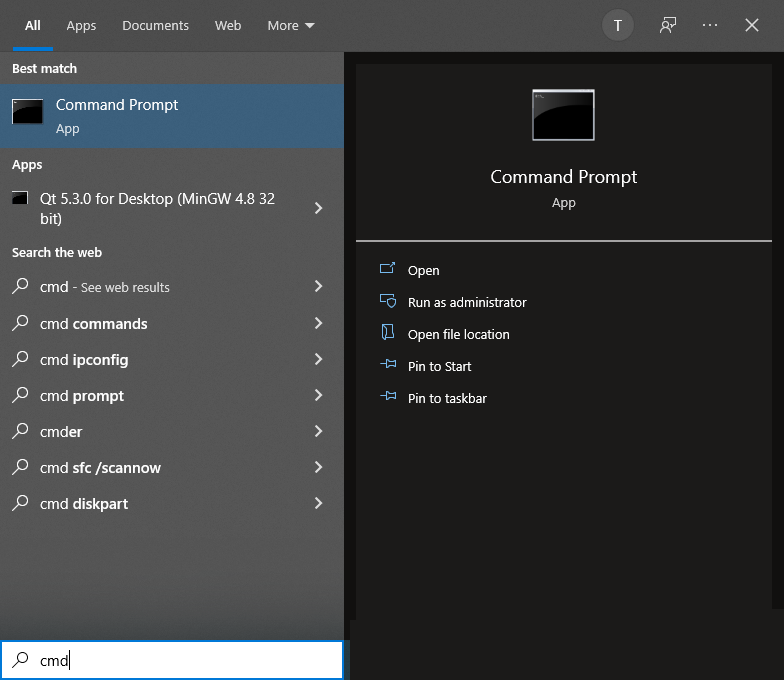
2. Open Command Prompt. To do this, click on the Windows/Start button, and type **CMD** Find and click on **Command Prompt** in the list.
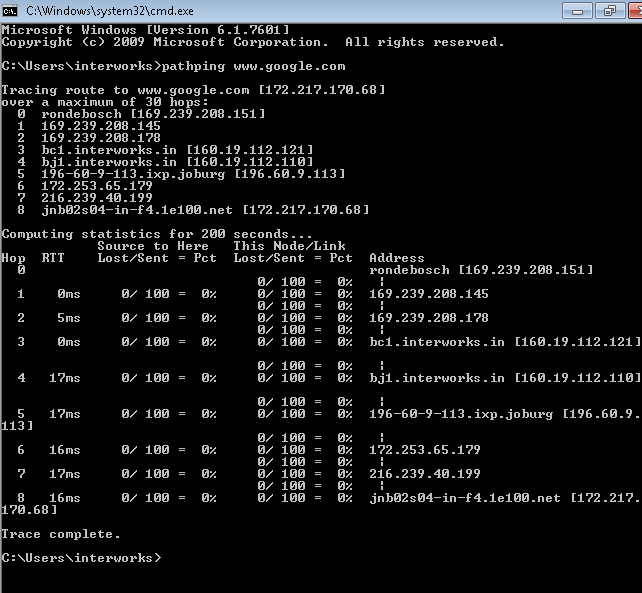
3. A separate, black window will open. Type **pathping www.google.com** (or whichever website our support team advises you enter) and press **ENTER**
4. Pathping will start the test. Note that the test will take about 4 minutes to complete. Wait until the test finished with a **Trace Complete** message.
5. If required, take a screenshot of the result, and email it back to our support team.
[](https://bookstack.interworks.in/uploads/images/gallery/2022-05/QJRLCw72VTcIStGl-pathping1.png)
[](https://bookstack.interworks.in/uploads/images/gallery/2022-05/kisdmAgojHA4p2ry-pathping2.png)
## How to take a screenshot?
Sometimes our support team might ask you to take a screenshot of your pathping results and email it to us. Please see [this link](https://bookstack.interworks.in/books/self-tests/page/taking-a-screenshot "How to take a screenshot") on how to take a screenshot.
# Taking a screenshot
Sometimes our support team will ask you to perform a test and send us a screenshot. On a Windows computer, simply press the PrtScrn (Print Screen) button on your keyboard. Then, open your email client and start a new email. Simply click in the body of the email and press CTRL+V (or right click and select Paste). Your screenshot will be copied into your email.
When sending us a screenshot of a tests, please always ensure that the date & time the screenshot was taken is clearly visible in the image.