# Performing a Speedtest
## How to perform a speedtest
1. **Ensure that you are using a device cabled into your router**. Do not use wifi to perform a speedtest (see note below)
2. **Ensure that no other devices are connected to your network** while performing a test
3. Open your web browser (for example Chrome, Firefox, Edge)
4. Go to [www.speedtest.net](http://www.speedtest.net) or speedtest.mybroadband.co.za
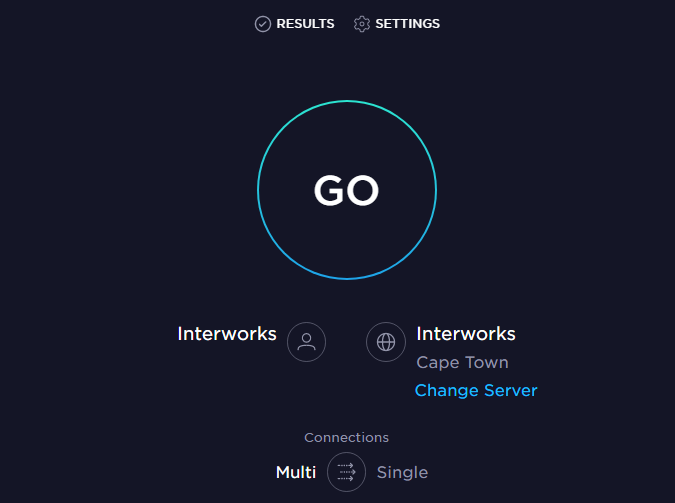
5. Click on GO or START TEST
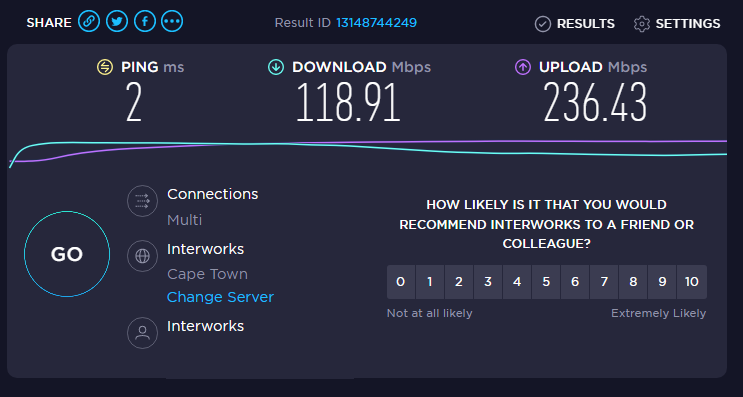
6. The test will run for a couple of seconds, before showing your results
[](https://bookstack.interworks.in/uploads/images/gallery/2022-05/gHrg0fHTD3GMpalN-speedtest1.png)
[](https://bookstack.interworks.in/uploads/images/gallery/2022-05/ZXy8xz06HMjEv0uu-speedtest2.png)
## Why perform a speedtest using a cabled device?
This will allow us to better pinpoint where an issue is, and help get a quicker resolution. It allows us to differentiate between a backhaul issue (fibre or fixed wireless) and internal wireless issues, both of which require a different approach to resolve. The result of this test is also a requirement from various fibre vendors (if applicable) before we can log a support ticket with them to investigate any possible issues on a line.
## Why is it important that no other device be connected to my router while performing the speedtest?
A speedtest shows the "leftover" capacity on your line. If any device is busy downloading in the background (i.e. a device performing automatic updates, or syncing to the cloud), it will skew the result, and make it more difficult to pinpoint the exact issue.
## How do I take a screenshot?
Sometimes our support team might ask you to take a screenshot of your speedtest results and email it to us. Please see [this link](https://bookstack.interworks.in/books/self-tests/page/taking-a-screenshot "How to take a screenshot") on how to take a screenshot.